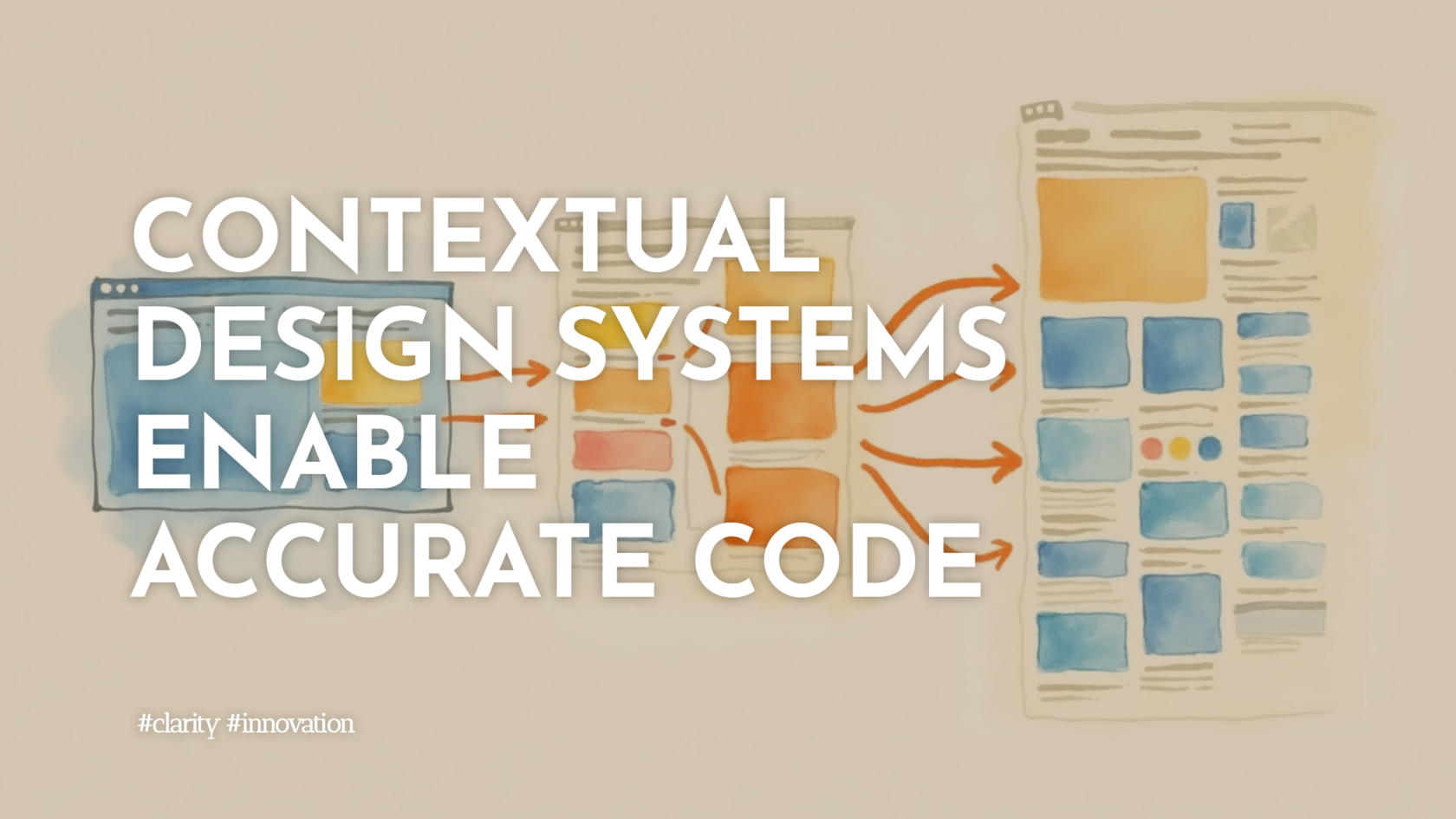
At CYFRON SOFTWARE TRADING, we’re always exploring how to bridge the gap between great UI design and clean, production-ready code. The journey from Figma to a working browser layout is rarely a straight path—especially in product workflows where accuracy, responsiveness, and brand alignment matter.
Recently, several methods for converting Figma designs into usable HTML and CSS caught our attention. All take different approaches, from quick snapshots to highly structured data exports. While the goal remains the same—a faithful and scalable code translation—the outcomes vary sharply based on one key factor: design context.
Let’s break down the four techniques that developers, design leads, and product engineers can use to generate front-end code from Figma.
1. Screenshot Only – The Fast but Fuzzy Start
The simplest approach involves uploading a screenshot of the design and prompting a code generation tool like Cursor to create HTML/CSS. While this method runs quickly, results tend to lose precision—typography may shift, shadows appear where none exist, and structure becomes guesswork. Without detailed clues, AI has to infer too much, leading to noisy output.
2. Screenshot Plus Tokens – Adding Structure
The next method involves capturing not only the screenshot but also providing design tokens such as color values, typography styles, spacing, and radii. This context significantly increases output accuracy. The browser version becomes more consistent with the visual blueprint, though it falls short of true fidelity. Styles are respected, but layout behaviors may not fully align.
3. Prompt Engineering with Google Gemini
A more refined prompt—generated by a powerful language model like Gemini 2.5 Pro—can help frame the design intent more clearly. Feeding this crafted prompt to Cursor alongside the image improves the result, adding hierarchy and usability. However, the creative liberties Gemini introduces occasionally deviate from what the designer intended. You trade some accuracy for stylistic enhancements.
4. Figma MCP Server – Pixel-Perfect by Design
The most robust approach uses Figma’s Machine-code Creation Protocol (MCP) server. Here, you operate within a consistently structured design system—leveraging features like auto layout, defined variables, and accurately named layers. By linking directly to a Figma selection, MCP makes internal design data available to Cursor. The generated HTML/CSS is nearly indistinguishable from the original design and flexible enough for responsive development.
This approach aligns with best practices: clean structure, reusable tokens, well-named components, and modular export. For complex interfaces, it’s wise to break exports into manageable areas—header, sidebar, content—to maintain responsiveness and usability across devices.
What This Means for Teams
For developers: cleaner handoffs, less guesswork, quicker implementation cycles. For product managers and UI/UX teams: stronger design fidelity, fewer revision rounds, and clearer communication. Across the board, investing time in structuring Figma files properly pays dividends down the line.
At CYFRON, we believe interfaces should not only look beautiful but also behave predictably and scale responsibly. By combining structured design with smart tooling, teams can achieve a modern development workflow where creativity and execution meet seamlessly.
Whether you’re prototyping a ticketing layout or reworking a dashboard, the key takeaway is simple: the more design context you provide, the better the code outcome. With the right setup, your designs don’t just inspire—they build.
Recently, several methods for converting Figma designs into usable HTML and CSS caught our attention. All take different approaches, from quick snapshots to highly structured data exports. While the goal remains the same—a faithful and scalable code translation—the outcomes vary sharply based on one key factor: design context.
Let’s break down the four techniques that developers, design leads, and product engineers can use to generate front-end code from Figma.
1. Screenshot Only – The Fast but Fuzzy Start
The simplest approach involves uploading a screenshot of the design and prompting a code generation tool like Cursor to create HTML/CSS. While this method runs quickly, results tend to lose precision—typography may shift, shadows appear where none exist, and structure becomes guesswork. Without detailed clues, AI has to infer too much, leading to noisy output.
2. Screenshot Plus Tokens – Adding Structure
The next method involves capturing not only the screenshot but also providing design tokens such as color values, typography styles, spacing, and radii. This context significantly increases output accuracy. The browser version becomes more consistent with the visual blueprint, though it falls short of true fidelity. Styles are respected, but layout behaviors may not fully align.
3. Prompt Engineering with Google Gemini
A more refined prompt—generated by a powerful language model like Gemini 2.5 Pro—can help frame the design intent more clearly. Feeding this crafted prompt to Cursor alongside the image improves the result, adding hierarchy and usability. However, the creative liberties Gemini introduces occasionally deviate from what the designer intended. You trade some accuracy for stylistic enhancements.
4. Figma MCP Server – Pixel-Perfect by Design
The most robust approach uses Figma’s Machine-code Creation Protocol (MCP) server. Here, you operate within a consistently structured design system—leveraging features like auto layout, defined variables, and accurately named layers. By linking directly to a Figma selection, MCP makes internal design data available to Cursor. The generated HTML/CSS is nearly indistinguishable from the original design and flexible enough for responsive development.
This approach aligns with best practices: clean structure, reusable tokens, well-named components, and modular export. For complex interfaces, it’s wise to break exports into manageable areas—header, sidebar, content—to maintain responsiveness and usability across devices.
What This Means for Teams
For developers: cleaner handoffs, less guesswork, quicker implementation cycles. For product managers and UI/UX teams: stronger design fidelity, fewer revision rounds, and clearer communication. Across the board, investing time in structuring Figma files properly pays dividends down the line.
At CYFRON, we believe interfaces should not only look beautiful but also behave predictably and scale responsibly. By combining structured design with smart tooling, teams can achieve a modern development workflow where creativity and execution meet seamlessly.
Whether you’re prototyping a ticketing layout or reworking a dashboard, the key takeaway is simple: the more design context you provide, the better the code outcome. With the right setup, your designs don’t just inspire—they build.